- About this manual
- Login
- Menu
-
File list
- File list
- Upload files
-
File Distribution
- About Email text
- About security settings
- Send from own mailer
- Email to Receiving (collecting) and distribution
- About Email text of the Email to collect and distribute
- About security settings of the Email to collect files and distribute files
- Notification of file and collection Email send from own mailer
- Check on how many people the file was sent
- Group sharing folder function
- Folder publication
- Display thumbnail image function
- Receive (collect)
- Mail standby
- Address book
- Approval list(※Option)
- History
- Settings
- Profile
- Support
- Help
- Download files
- Upload files
File list
Upload files
You can upload files on the WebFile. Please [Upload] button on file list.
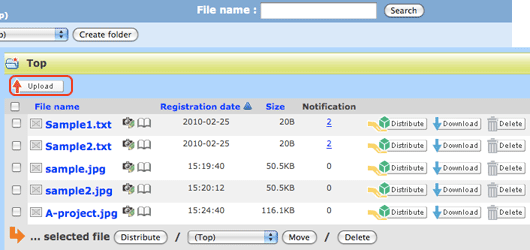
Form to upload file is appear. Please select files and click [Upload].
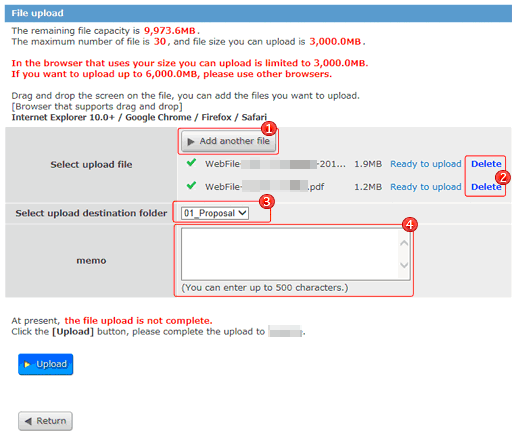
 | [Add another file] |
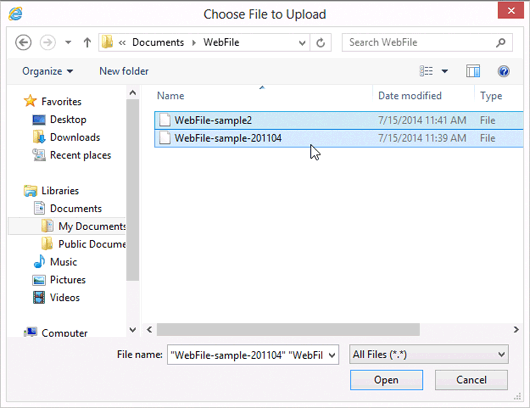
Please select files you want to upload with [Add another file] button. The Choose File to Upload dialog opens when you click the [Add another file] button. 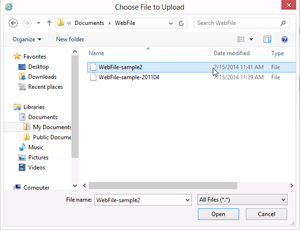
Please check the screen the maximum number of file and the maximum upload capacity.  When you upload a file, it may be filtering according to the form of a file. Please Ask an administrator about a file format. 
|
|---|---|---|
 | [Delete] | After you select the file you want to upload, you can delete the file that you do not want to upload. |
 | Select upload destination folder |
You can select folder you want upload files in.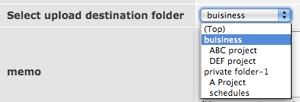
|
 | Memo |
You can note down something here. And you can see this memo in the file details area. It is not able to the person whom you sent these files to see this memo. 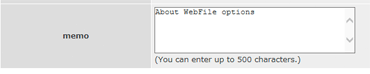
|
File uploading was completed.
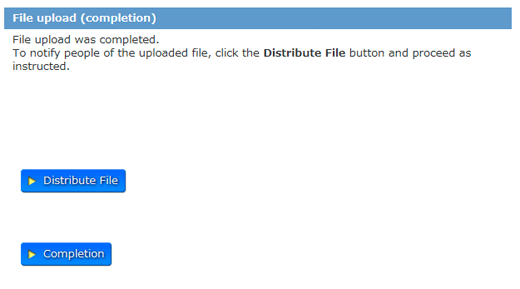
To notify people of the uploaded file, click the [Distribute File] button. The Notification of registered file page will appear. (→File distribute)
About about upload file selection.
- Select multiple files.
-
You can upload multiple files, If you are using You use the browser at Internet Explorer 10.0 and over or Google Chrome or Firefox or Safari.
Please select files at press Ctrl key or Shift key.
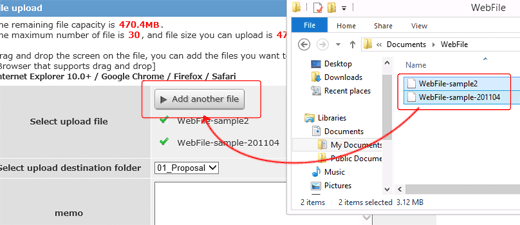
- Drag and Drop File Upload.
-
You can drag and drop file uploads, If you are using You use the browser at Internet Explorer 10.0 and over or Google Chrome or Firefox or Safari.
About File uploads of 2,000MB and over.
File upload of from 1,000 MB to 6,000 MB is possible with optional in WebFile. However, you will not be able to upload, depending on the browser you are using.
| Browser | Maximum upload capacity | Maximum download capacity |
|---|---|---|
| Internet Explorer 7 | 2,000MB | 4,000MB |
| Internet Explorer 8 | 2,000MB | 6,000MB |
| Internet Explorer 9 and over | 3,000MB | 6,000MB |
| Google Chrome Firefox Safari |
6,000MB | 6,000MB |
About uploading shared folder.
If you choose to upload files to a shared folder, You can send notification E-mail to members of the group.
And you are able to edit the subject and body of the notification e-mail.
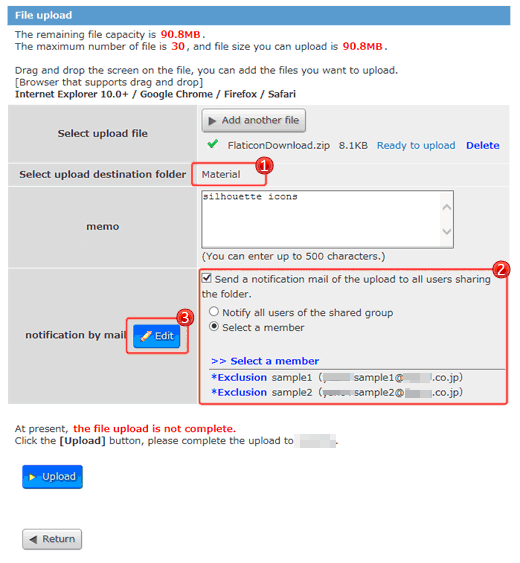
| Select upload destination folder |
If after selecting a shared folder, and if you go to the upload page, it is not possible to change the "upload folder". Please go to the file list page, and selecting shared folder. |
|---|---|---|
| notification by mail |
You can send notification E-mail to members of the group. Please select from all members or choice member. Please click on the "select a member" link to show the members list. Select members from the member list. 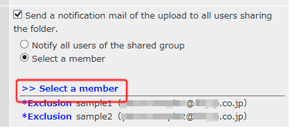 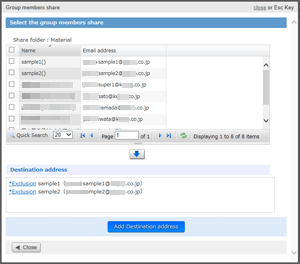 |
| notification by mail edit |
You can edit the subject and body of the e-mail notification when you click the Edit button. After editing, please click the "Edit" button. 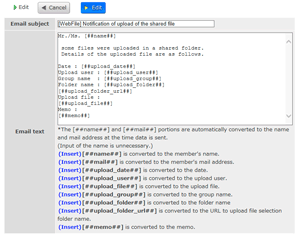
|