- About this manual
- Login
- Menu
-
File list
- File list
- Upload files
-
File Distribution
- About Email text
- About security settings
- Send from own mailer
- Email to Receiving (collecting) and distribution
- About Email text of the Email to collect and distribute
- About security settings of the Email to collect files and distribute files
- Notification of file and collection Email send from own mailer
- Check on how many people the file was sent
- Group sharing folder function
- Folder publication
- Display thumbnail image function
- Receive (collect)
- Mail standby
- Address book
- Approval list(※Option)
- History
- Settings
- Profile
- Support
- Help
- Download files
- Upload files
Receive (collect)
Receive (collect) files
“Receive (collect) files” is a function ; keep the space to receive files and send Emails to particular people to collect files, and that people can upload files to the system on the web.
You can send Email up to 10 people to collect files.
Please click the [Collected Email send] button above the collected file list.
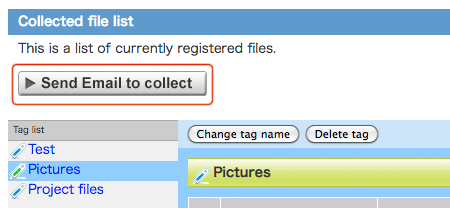
Screen changes to the “Send Email to collect file”.
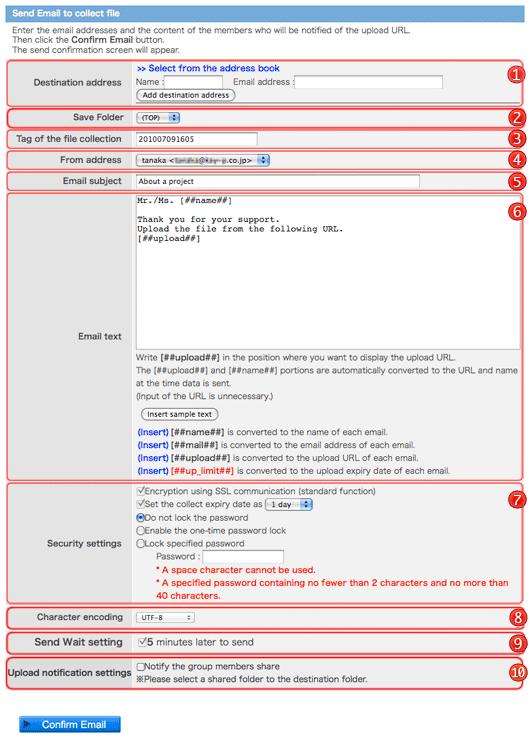
Please enter and select the item and click [Confirm Email] button.
 Destination Destinationaddress |
Enter the address or select the address from the address book. You can set up to 10 addresses. Please click the [Add destination address] button after enter a address. Or click “Select from the address book” and add from the address book. Click the “*Exclusion” on the left side of each address to delete the address. 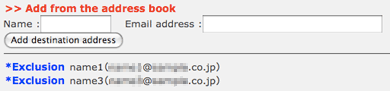 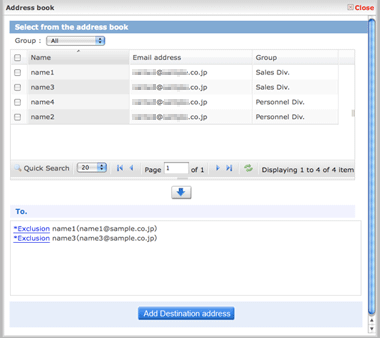 To select from the address book screen, please check the check box or click the address you want to select in the address list, and click [↓] button. Address is added to the address area.  After confirm the address, please click [Add destination address] button.The address is added to the file distribution screen. If you enter the address that is not in the address book to the destination address area, in the screen of the notification of registered file (completion), you can register the address in the address book. (The address is registered with “none” category. Please set the group. →Change group of address) If a mail address is inputted when the mail address is registered into the address book, it will come to be indicated by prediction from an address book. When clicking a mail address to input, the mail address clicked in the input area of the address is displayed. 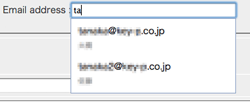
|
|---|---|
 Save folder Save folder |
In case “Save folder function“ is available, this area appears. You can set the folder to save the file that will be uploaded . When you set the save folder, the file that is uploaded is saved in the save folder directly not in the folder list. |
 Tag of the file Tag of the file collection |
You can manage the Email to collect files with tags. You can enter the tag name to create new one. If there are some tags already created, you can select a tag from these tags with click [Select tag.]
|
 From address From address |
According to the usage, you can send email of file notification with another sender name and sender email address. You can register another sender name and email address in the sender settings(→Sender setting). When the sender setting is invalid, the From address is not displayed. |
 Email subject Email subject |
This is a Email subject of the Email to collect files. |
 Email text Email text |
This is a text of the Email to collect files. Please enter the necessary item. x (→About Email text) |
 Security settings Security settings |
You can set security function every you send Email to collect files. It is able to use by combination according to your need.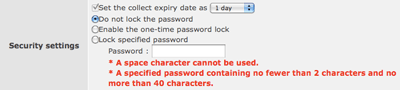
|
 Character Characterencoding |
You can set up character encoding of e-mail. You can choose either for ISO-2022-JP or UTF-8. |
 Send Wait Send Waitsetting |
An item is displayed when a transmission standby function is effective. Even if a transmission standby function distributes a file, it will be in a standby state, and it is a function made to be unable to perform download of a file for a while. When time is set up beforehand, standby is performed in time set up. 
When a setup of transmission standby is possible, you can choose use and can do transmission standby.And time can be set up. Time lower than an initial value cannot be set up. 
|
 Upload Uploadnotification settings |
It is a setup which can be used when having chosen the shared folder by the storage place folder. When a file uploads, the selected share member is notified of what the file uploaded. Selection of "Notify the group members share " will display an "Notify all member of the shared group" or "Select a member" radio button.  If you select "Notify all member of the shared group", make the notification to all members. If you select "Select a members", will be displayed "Select a member " link. 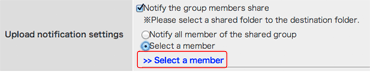 When clicking a link, a member selection screen is displayed.Please choose the member who notifies and click a [Add Destination address] button. 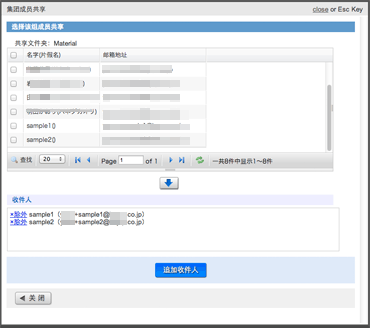 When adding a member, the member name chosen as the notice setup of upload is displayed.Please click "exclusion" link, when you delete a member.It is deleted from a notice member. 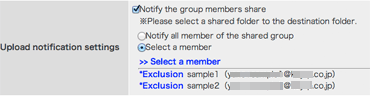
|
After enter every item, please and click [Confirm Email] button.
Send Email to collect file (confirm) screen will appear.
Please confirm the contents, please click [Send Email] button.
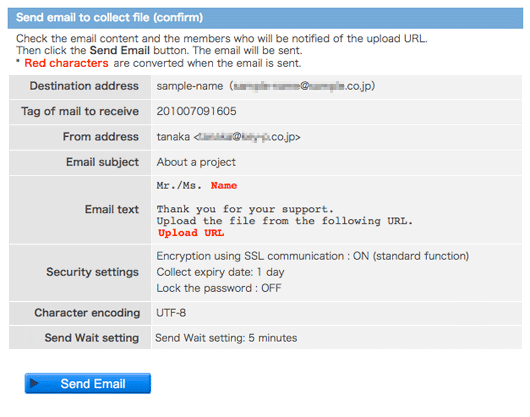
Send Email to collect file (completion) will appear.
Sending Email to collect file was completed.

This is an Email that is send and informs to collect the files.
Transformation characters like [##upload##] and [##mail##] are changed automatically into specific words like URL to upload and Email address when Email is sent.
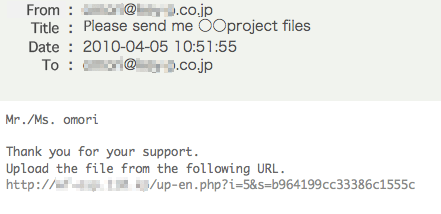
About Email text
You can write Email text with transformation characters more easily. Transformation characters will be change into upload-URL, the term of validity, names that Emails are sent to and addresses that Emails are sent to.
In addition, you can use function as follows. Function to enter the sample text to your Email text, create Email text template, and create your signature template.
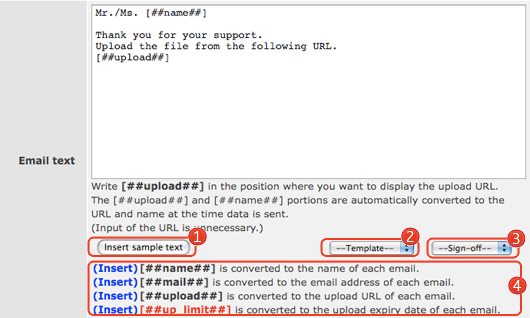
| [Insert sample text] |
You can insert sample text the system prepared in advance into your Email. Please click [Insert sample text] button. | ||||||||
|---|---|---|---|---|---|---|---|---|---|
| Template |
You can select template text users prepared and insert it into your Email. If users do not create template, it does not appear.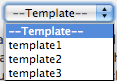
|
||||||||
| Sign off |
You can select template signature you prepared and insert it into your Email. If you do not create signature, it does not appear.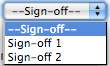
|
||||||||
| Transformation characters |
Transformation characters are changed automatically into specific words when Email is sent. You click “Insert” on the left hand of each transformation characters, they are inserted into your mail text. 
|
Receive (collect) files from own mailer
This is "Receive (collect) files from own mailer" is a function.
It is able to send up to 30 addresses in total at once. (10 addresses can be sent respectively of To, Cc, and Bcc.)
Please click the [Send Email from own mailer to collect] button above the collected file list.
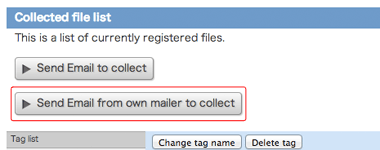
Screen changes to the "Send email to collect file from mailer".
Please enter and select the item and click [Confirm Email] button.
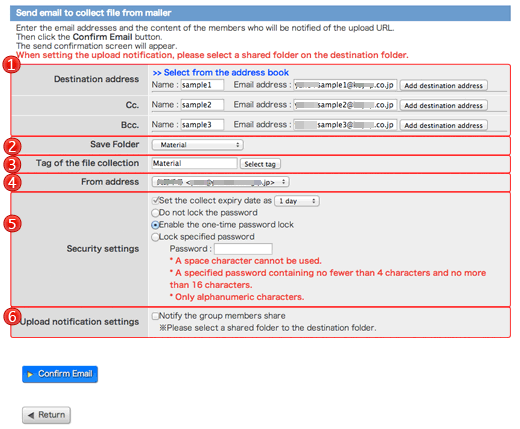
| Destination address, Cc. Bcc. |
Destination address, Cc, Bcc: enter the address or select from address book. You can set up to 10 addresses. If you want to add more addresses, please press [Add destination address] button. Or, you are able to add more addresses with using the address book. Please select the address you want to add and press [Add destination address] button on window of address book. If you want to delete the address in the To, Cc and Bcc, please click “* Exclusion”. 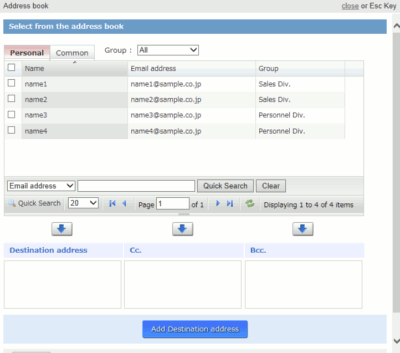 When you select the address you want file to send from the address book, on the window of address book, please click the address you want to add or check in the check-box beside the address. Please click [↓] button, and the address will be added in the address area. Please certain the address and please press[Add destination address] button. So, the address add to. If a mail address is inputted when the mail address is registered into the address book, it will come to be indicated by prediction from an address book. When clicking a mail address to input, the mail address clicked in the input area of the address is displayed.
|
|---|---|
| Save folder |
In case “Save folder function“ is available, this area appears. You can set the folder to save the file that will be uploaded . When you set the save folder, the file that is uploaded is saved in the save folder directly not in the folder list. |
| Tag of the file collection |
You can manage the Email to collect files with tags. You can enter the tag name to create new one. If there are some tags already created, you can select a tag from these tags with click [Select tag.]
|
| From address |
According to the usage, you can send email of file notification with another sender name and sender email address. You can register another sender name and email address in the sender settings(→Sender setting). When the sender setting is invalid, the From address is not displayed. |
| Security settings |
You can set security function every you send Email to collect files. It is able to use by combination according to your need.
|
| Upload notification settings |
It is a setup which can be used when having chosen the shared folder by the storage place folder. When a file uploads, the selected share member is notified of what the file uploaded. Selection of "Notify the group members share " will display an "Notify all member of the shared group" or "Select a member" radio button. If you select "Notify all member of the shared group", make the notification to all members. If you select "Select a members", will be displayed "Select a member " link. When clicking a link, a member selection screen is displayed.Please choose the member who notifies and click a [Add Destination address] button. When adding a member, the member name chosen as the notice setup of upload is displayed.Please click "exclusion" link, when you delete a member.It is deleted from a notice member.
|
After enter every item, please and click [Confirm Email] button.
"Send Email to collect file (confirm) from mailer" screen will appear.
Please confirm the contents, please click [Complete Email Creation Preparation] button.
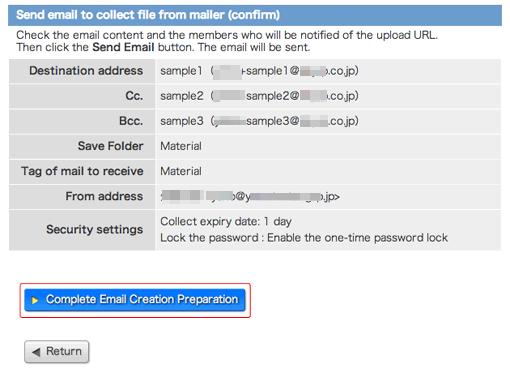
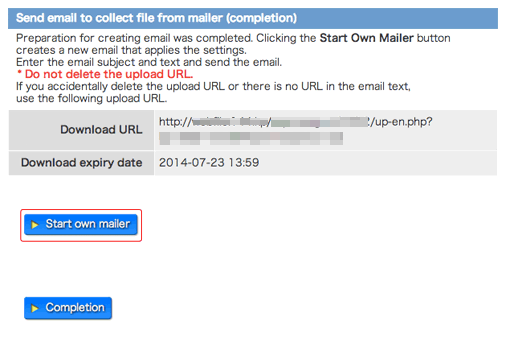
You move to the page of Send email to collect file from mailer (completion).
It has been completed to send an Email to upload file with your own mailer software.
The URL to upload files is appear on this page. Please copy this URL into your Email text, and send Email to the address you have set into To, Cc, Bcc.
To start your usual mailer software, please click [Start own mailer] button.