- About this manual
- Login
- Menu
-
File list
- File list
- Upload files
-
File Distribution
- About Email text
- About security settings
- Send from own mailer
- Email to Receiving (collecting) and distribution
- About Email text of the Email to collect and distribute
- About security settings of the Email to collect files and distribute files
- Notification of file and collection Email send from own mailer
- Check on how many people the file was sent
- Group sharing folder function
- Folder publication
- Display thumbnail image function
- Receive (collect)
- Mail standby
- Address book
- Approval list(※Option)
- History
- Settings
- Profile
- Support
- Help
- Download files
- Upload files
Login
First of all, please login the system.
When you finish using the system, please logout.
Login
Please access URL of the system, and display the screen of the system.
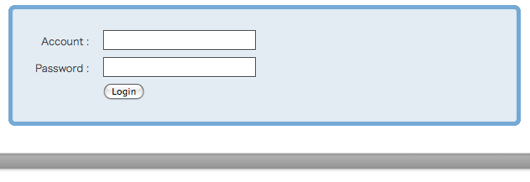 Please enter your account and your user password, and click the [Login] button.
After you are certified, you are able to login, and after, a top-page including the file list will open.
Logout
Please click Menu:Logout, then you logout of the system.

After you logout the system, get on to the login page of the system.
When forgot your account, password
If you forget or miss your account or password, you can get the account necessary for login and password reissued.
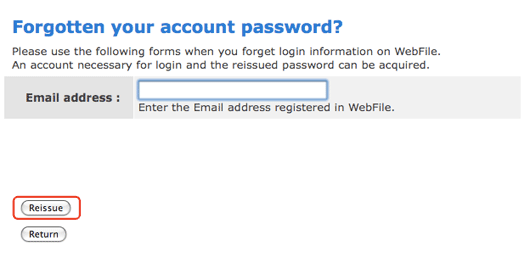
Please enter your Email address registered in the system, and press the [Reissue] button.
The system send you a Email in which your account and user password are mentioned.
Windows Integrated Authentication
Please click [Windows integrated attestation] button once.It can change to an attestation screen automatically.

Client authentication
Client authentication is an option.
Client attestation is the function to use a client certificate and to identify a user.
In order for you to log in using a client certificate, it is necessary to perform a setup by a web browser.
Please double-click the file of a certificate.The import screen of a certificate opens.
Please click the [Next] button.
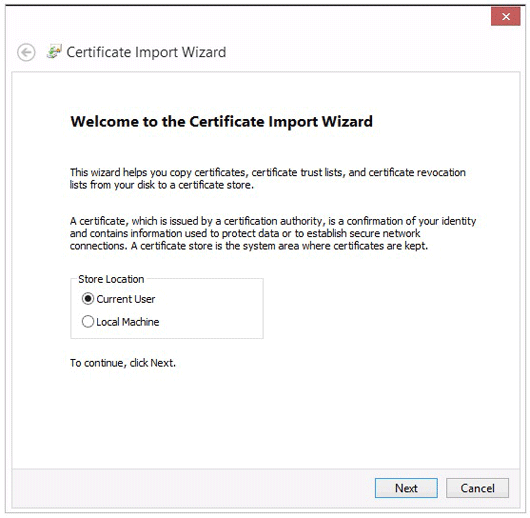
Please choose the file to import and click [Next] button.
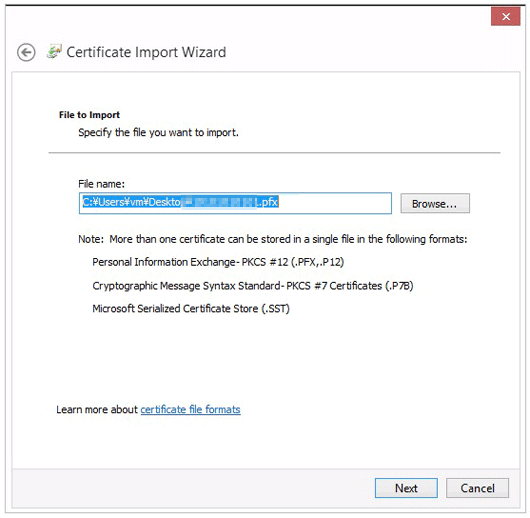
Please enter a password and click [Next] button.
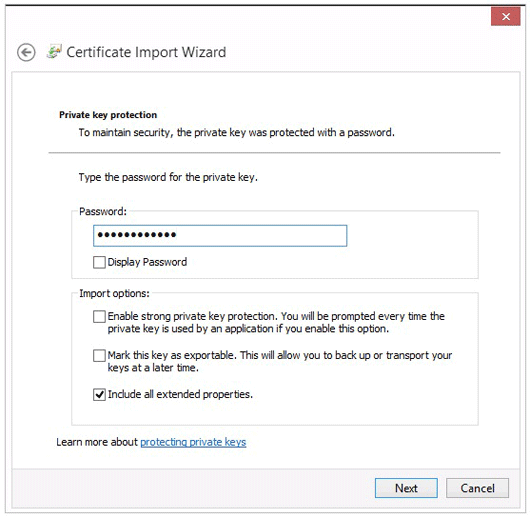
Please check the following items, supposing it is required for you.
- Enable strong private key protection.
- You Will be prompted every time the private key is used by an application if you enable this option.
- Mark this key as exportable.
- This will allow you to back up or transport your keys at a later time.
- Indude all extended properties.
- If it checks, indude all extended properties.
Please set up by Certificate Store and click [Next] button.
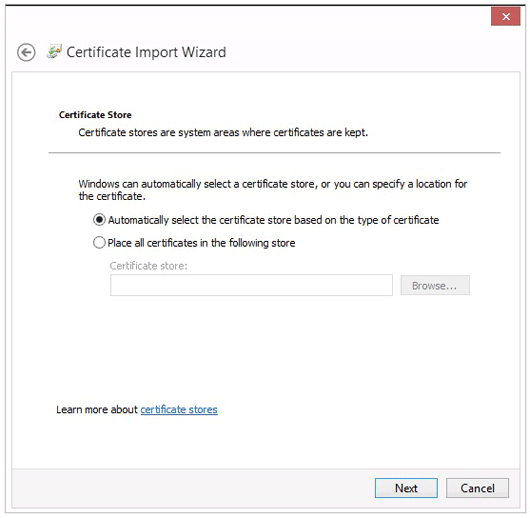
- Automatically select the certificate store based on the type of certificate
- Based on the kind of certificate, when a certificate needs to be automatically arranged at a certificate store, it chooses.
- Place all certificates in the following store
- A certificate is chosen when the storage location of a certificate needs to be specified.
You have successfully completed the install of your certificate. Close the Certificate Import Wizard by clicking [Finish] button.
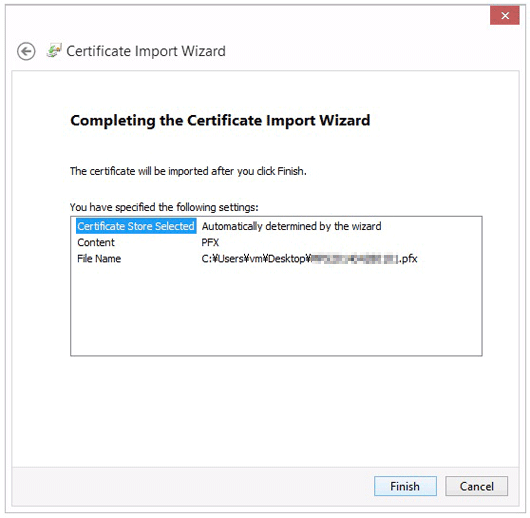
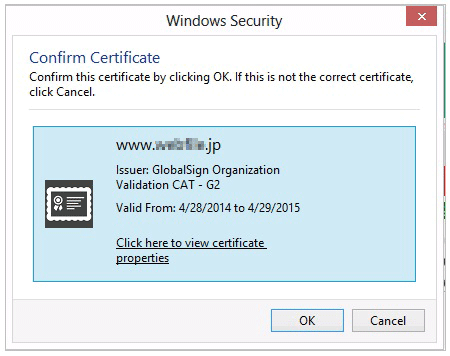
When you log in to a system next, the confirmation screen of a certificate is displayed.
Please choose a certificate and log in.
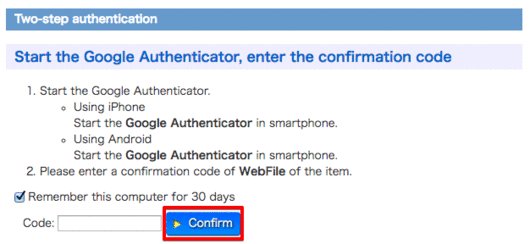
Two-step authentication
If the two-step authentication is enabled, you need to do regularly confirm.
Along the description enter the code, please click the [Confirm].
When checked, you can login without a two-step authentication during a certain period of time.