- About this manual
- Login
- Menu
-
File list
- File list
- Upload files
-
File Distribution
- About Email text
- About security settings
- Send from own mailer
- Email to Receiving (collecting) and distribution
- About Email text of the Email to collect and distribute
- About security settings of the Email to collect files and distribute files
- Notification of file and collection Email send from own mailer
- Check on how many people the file was sent
- Group sharing folder function
- Folder publication
- Display thumbnail image function
- Receive (collect)
- Mail standby
- Address book
- Approval list(※Option)
- History
- Settings
- Profile
- Support
- Help
- Download files
- Upload files
File list
Folder publication
Folder publication function is a function to send a whole personal folder with files made by user.
You are able to send many files to someone whom you want to send files at once.
Shared folder cannot be opened like a personal folder.
When thumbnail-picture function is on, if there are files with thumbnail-picture in the personal folder you will open for public, you can send files with thumbnail-picture to someone you want to send.
People who received their files can see the files with thumbnail-picture. So, you attach a thumbnail-picture that receiver can image the file contents easily.
An image file you attached to another files as a thumbnail-picture in a folder cannot be distributed by the folder publication function.
Every time you use folder publication function, you can set security-settings. At your situation, you can set various function to keep your operate and files safe.
In the file list page, please click the [folder publication] button at the right hand.
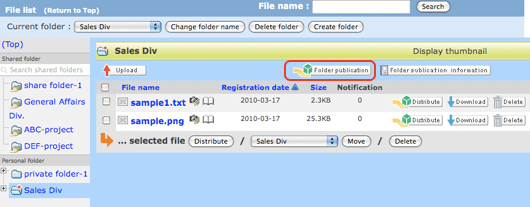
Next, a page that sends an information Email about sending files with a publication folder will appear.
Please enter or select items and set the security-settings as you need.
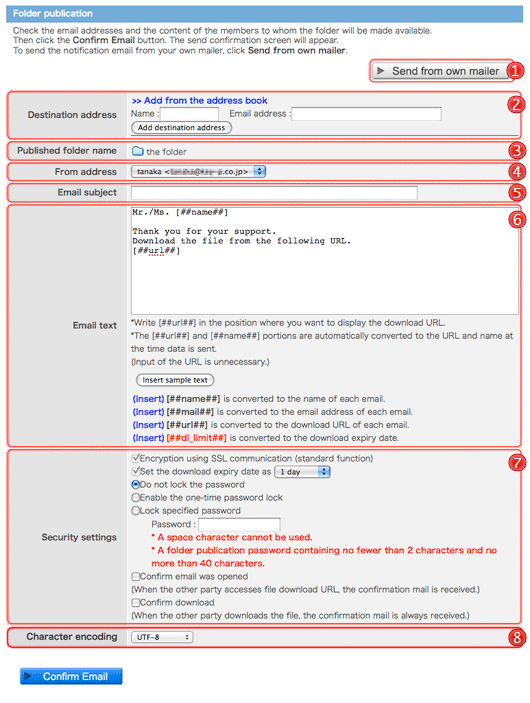
 [Send from [Send fromown mailer] |
You can use your usual mailer software to send information Email. (→Send from own mailer) |
|---|---|
 Destination Destinationaddres |
Enter the address or select from your address book. You can set up to 10 addresses. Enter an address to this text box, and click [Add destination address] button. Or Select from your address book. To delete an address already set, please click “*Exclusion”. 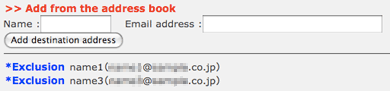 If you want to enter the address from address book, please click the “Add from the address book”. 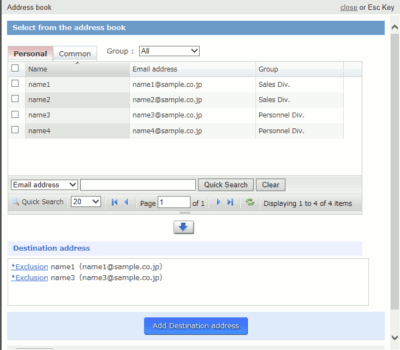 In the add from the address book page, click the address you want to add or check the check-box, and then click the [↓] button. Addresses will be added in the address area.  After you confirm these addresses, click [Add destination address] button. Addresses will be added in the a page that sends an information Email about sending files with a publication folder. If you enter the address that is not in the address book yet, in the “notification of registered file (completed)” page, you can resister the address easily. (The address will be registered as a “Group None”. So please set group by the (→Change the group an address belongs to) If a mail address is inputted when the mail address is registered into the address book, it will come to be indicated by prediction from an address book. When clicking a mail address to input, the mail address clicked in the input area of the address is displayed. 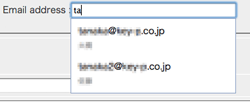
|
 Published Publishedfolder name |
This is a folder to be published. You can distribute files that contained in the folder at once. You can not change the folder or add another folder. 
|
 From address From address |
According to the usage, you can send email of file notification with another sender name and sender email address. You can register another sender name and email address in the sender settings(→Sender setting). When the sender setting is invalid, the From address is not displayed. |
 Email subject Email subject |
This is an Email subject send to file distribution. |
 Email text Email text |
Write Email text here. Please enter essential items. (→About Email text) |
 Security settings Security settings |
Security settings: Settings for keep security,Please set security-function according to your need. (→About the security settings for the published folder) |
 Character Characterencoding |
You can set up character encoding of e-mail. You can choose either for ISO-2022-JP or UTF-8. |
After you confirm these contents, please click the [Confirm Email] button. The Folder publication (confirm) page will appear.
In case administrator set a leader (*Option), there is a area you have to select your leader from, so please select.
Your operation to send files to someone is notified to your leader by Email. After your leader agrees with your operation, the Email is sent. If the leader does not agree, the Email does not be sent.
(→list of leader confirmation)
After you confirm these contents, please click the [Send Email] button.
You can see the “notification of registered file (completed)” page. The folder publication was completed.

About Security settings for the publication folder
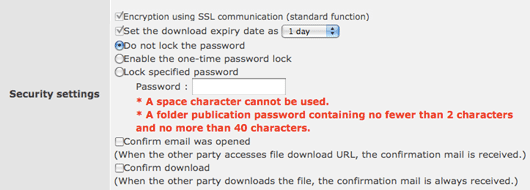
- Encryption by SSL
- In this system, the communication is encrypted by EV SSL. This is a standard function.(※ This is appeared when connected by EV-SSL.)
- The download expiry date
-
You can set the expiry date of download files from the publication folder.
After that date, it is impossible to download. - Do not lock the password
- Do not use lock function.
- Enable the one-time password lock.
-
Use one-time password lock.
The password is only use one time, and it is can be used by with Email address you limit, so it is very secure.
- Lock specified password
- You can lock supecified password with the word or number you decide. Please inform file-receiver the password.
- Confirm Email was opened
- After files are distributed, and a file-receiver access the download URL, a notification Email is sent to you.
- Confirm download
- After the folders are published, and files are downloaded, a notification Email is sent to you.
About the folder publication information
In the file list page, please click the [folder publication information] button at the right hand.
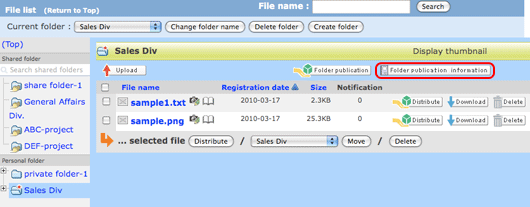 In the folder publication information page, there is information about the folder that is opened to the pubic now.
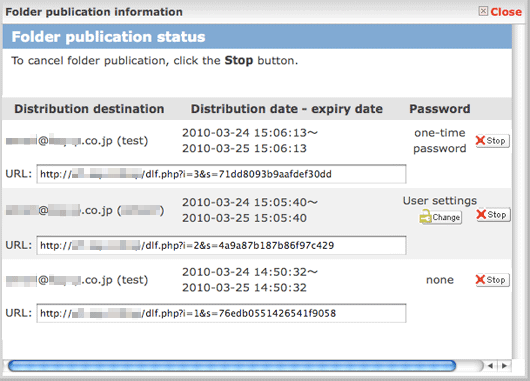
| Distribution destination |
Mail address (name) which is sent notification about the folder publication Email. | ||||||||
|---|---|---|---|---|---|---|---|---|---|
| Distribution date - expiry date |
The date that start to distribute and end to distribute files in the publication folder. | ||||||||
| Password |
They are the password type you set when you distribute publication folder.
|
||||||||
 |
Stop going public with the folder. | ||||||||
